728x90
📌 구현목표
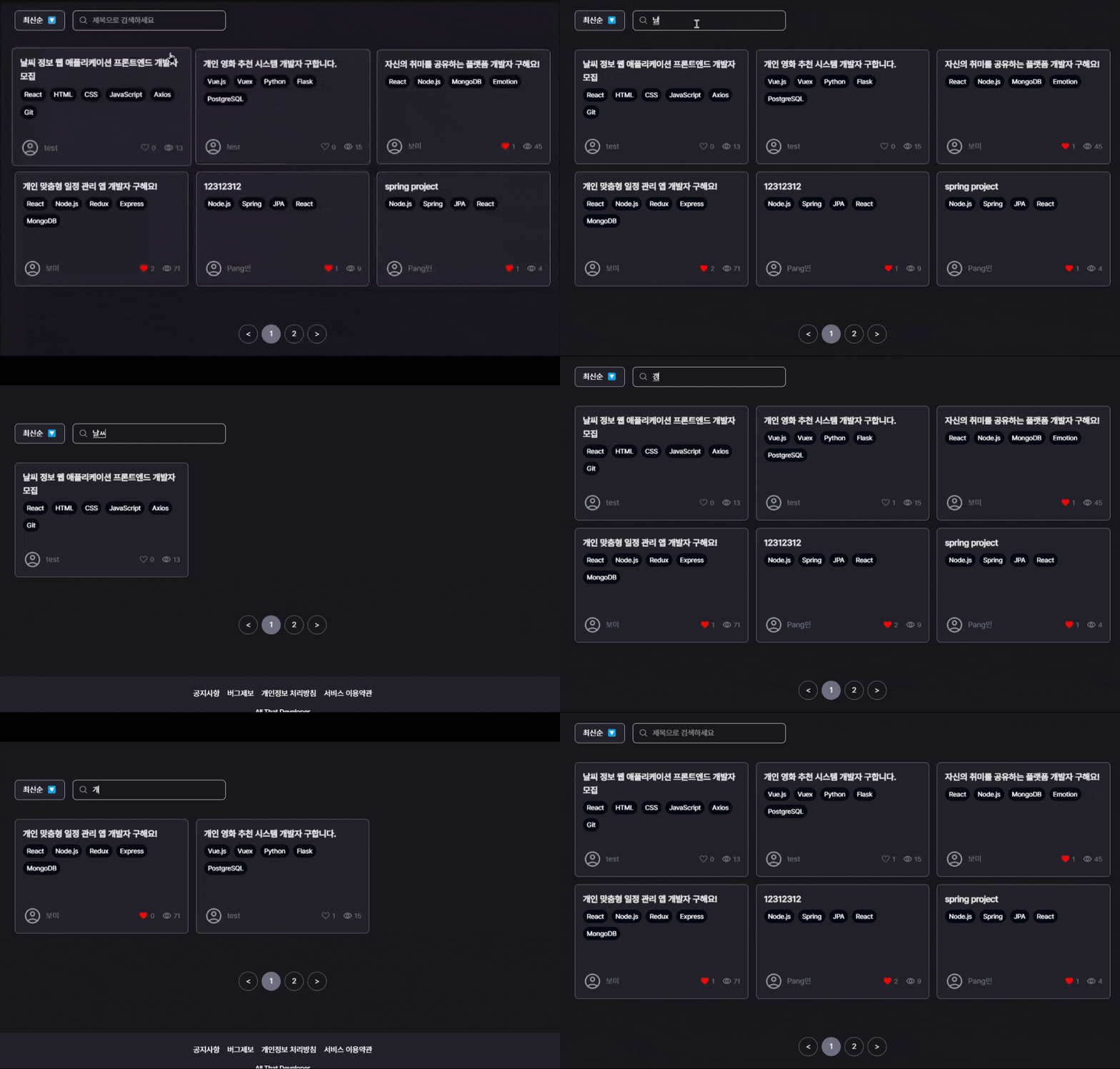
- 검색창에서 입력이 바뀔 때마다 서버에 요청을 즉시 보내지 않고, 입력이 멈춘 뒤 일정 시간(300ms) 이후에 검색 요청을 보내기
- 검색 결과를 부모 컴포넌트에 전달해서 리스트 렌더링 제어하기
1. SearchBar 컴포넌트 타입 정의
SearchBar는 공통 컴포넌트라 기존에는 onSearchResult의 파라미터 타입을 단순히 any[]로 지정해두었다. 하지만 any를 쓰면 TypeScript가 어떤 타입의 배열이 넘어오는지 정확하게 추론할 수 없다. 😢
Project[]를 받아야 할 컴포넌트에 실수로 Study[]를 넘겨도 오류 없이 실행되어 런타임 버그로 이어질 수 있기 때문에Discriminated Union을 사용했다!
https://radlohead.gitbook.io/typescript-deep-dive/type-system/discriminated-unions
구별된 유니온 | TypeScript Deep Dive
이것은 에 TypeScript 타입 어노테이션이 추가된 모습입니다:
radlohead.gitbook.io
변경 전)
type SearchBarProps = {
  type: 'project' | 'study'
  onSearchResult: (data: any[]) => void
}
변경 후)
type SearchBarProps =
  | {
      type: 'project'
      onSearchResult: (data: Project[]) => void
    }
  | {
      type: 'study'
      onSearchResult: (data: Study[]) => void
    }
2. keyword 상태 정의 및 onChange
input에서 onChange={(e) => setKeyword(e.target.value)} 로 업데이트해준다!
const [keyword, setKeyword] = useState('')

<input
  type="text"
  onChange={(e) => setKeyword(e.target.value)}
  placeholder="제목으로 검색하세요"
  className="w-full rounded-lg border border-gray-300 bg-transparent px-4 py-2 pl-10 focus:outline-none"
/>
3. 검색 API 호출 함수
const handleSearch = useCallback(async () => {
  if (!keyword.trim()) {
    onSearchResult([]) // 입력이 공백이면 결과 초기화
    return
  }
  try {
    const data =
      type === 'project'
        ? await searchProject(keyword)
        : await searchStudy(keyword)
    onSearchResult(data)
  } catch (error) {
    console.error('검색 실패:', error)
  }
}, [keyword, onSearchResult, type])
4. 디바운스 적용하기
- keyword가 바뀔 때마다 타이머를 새로 설정
- 입력이 멈춘 뒤 300ms가 지나야 handleSearch 실행
- 그 전에 또 입력하면? → 이전 타이머는 clearTimeout으로 제거
useEffect(() => {
  const debounce = setTimeout(() => {
    handleSearch()
  }, 300) // 입력 멈춘 후 300ms 지나면 실행

  return () => clearTimeout(debounce) // 입력 도중에는 이전 타이머 제거!
}, [keyword, handleSearch])
💡 디바운스란?
사용자의 입력이 너무 빠를 때, 일정 시간 동안 입력이 멈췄을 때만 동작하도록 함수를 지연시키는 기법
사용자가 "프론트엔드" 입력한다고 할 때
- ㅍ → API 요청 🔁
- ㅡ → API 요청 🔁
- ㄹ → API 요청 🔁
- ...
=> 매 글자마다 요청 → 서버 과부하 ⚠️
✅ 디바운스 적용 시
- "드"까지 입력하고 300ms 동안 입력 없으면 → API 딱 1번 요청함!
이걸로 불필요한 API 요청을 줄일 수 있다!
5. 부모 컴포넌트 연결
이제 부모컴포넌트에서 SearchBar 프롭으로 두 개를 주면 끝임.!
검색 결과가 없으면 전체 리스트 보여주고, 결과가 있으면 필터된 리스트만 보여준돠!
const [searchResults, setSearchResults] = useState<Project[] | null>(null)

const handleSearchResult = (results: Project[]) => {
  setSearchResults(results.length ? results : null)
 }

<SearchBar type="project" onSearchResult={handleSearchResult} />

<ProjectList
  currentPage={currentPage}
  projects={searchResults ?? sortedProjects}
  itemsPerPage={itemsPerPage}
/>
풀코드)
type SearchBarProps =
  | {
      type: 'project'
      onSearchResult: (data: Project[]) => void
    }
  | {
      type: 'study'
      onSearchResult: (data: Study[]) => void
    }

export default function SearchBar({ type, onSearchResult }: SearchBarProps) {
  const [keyword, setKeyword] = useState('')

  const handleSearch = useCallback(async () => {
    // 빈 입력 시 결과 초기화
    if (!keyword.trim()) {
      onSearchResult([])
      return
    }
    try {
      const data =
        type === 'project'
          ? await searchProject(keyword)
          : await searchStudy(keyword)
      onSearchResult(data)
    } catch (error) {
      console.error('검색 실패:', error)
    }
  }, [keyword, onSearchResult, type])

  useEffect(() => {
    const debounce = setTimeout(() => {
      handleSearch()
    }, 300)

    return () => clearTimeout(debounce)
  }, [keyword, handleSearch])

  return (
    <div className="relative w-full max-w-60 md:max-w-80">
      <input
        type="text"
        onChange={(e) => setKeyword(e.target.value)}
        placeholder="제목으로 검색하세요"
        className="w-full rounded-lg border border-gray-300 bg-transparent px-4 py-2 pl-10 focus:outline-none"
      />
      <Image
        src={search}
        alt="검색 아이콘"
        width={20}
        height={20}
        className="absolute top-1/2 left-3 -translate-y-1/2"
      />
    </div>
  )
}
구현 완!!! 🥳
'✨FRONTEND > 📍Next.js' 카테고리의 다른 글
| Next.js App Router + Tailwind + Prettier + ESLint + husky 세팅하기 (2) | 2025.05.17 |
|---|---|
| 프로필 이미지 업로더 구현하기(feat. 이미지 미리보기) (1) | 2025.05.10 |
| 드롭다운 메뉴 직접 구현하기 (0) | 2025.04.04 |
| Zustand로 로그인 상태 관리하기 (2) | 2025.03.16 |
| Vercel Organization 우회 배포 & PR Preview 설정하기 (1) | 2025.03.11 |


