React/Next.js 마크다운 목차(Table of Contents) 구현하기
[✨FRONTEND/📍React] - React/Next.js 마크다운 적용하기
React/Next.js 마크다운 적용하기
React 마크다운 미리보기 적용하기👁️React 프로젝트에서 글 작성 기능을 구현하면서 처음에는 단순히 textarea만 사용해 글을 입력받도록 만들었다. 하지만 마크다운 문법을 사용하는 글이라면
bori-note.tistory.com
예전에 게시글 등록할 때 마크다운 미리보기 기능을 구현한 적이 있다.
이번에 다른 프로젝트를 진행하면서 동일하게 미리보기 기능을 적용해봤는데, 상세 페이지를 볼 때 내용이 길어져 벨로그 처럼 목차 기능을 넣어보기로 했다.
블로그 글처럼 내용이 길어질 경우 사용자가 원하는 섹션으로 바로 이동할 수 있는 목차 기능이 있으면 훨씬 편리하다.
그래서 마크다운으로 작성된 글에서 헤더(#, ##, ###)를 자동으로 추출해 목차를 만들고, 클릭하면 해당 위치로 스크롤 이동하는 기능을 구현했다.
마크다운에서 헤더 추출하기
먼저 글 내용을 줄 단위로 나누고 헤더(#)로 시작하는 라인만 필터링한다.
const lines = content.split('\n')

return lines.filter((line) =>line.startsWith('#'))
예를 들어 다음과 같은 마크다운이 있다면
# 제목1
내용

## 소제목
내용

### 세부 내용
#, ##, ### 라인이 목차 데이터가 된다.
헤더 레벨과 텍스트 분리
마크다운 헤더는 # 개수로 레벨이 결정된다.
예시
# 제목
## 소제목
### 세부제목
이를 정규식으로 분리한다.
const match=line.match(/^(#+)\s+(.*)/)

const level=match[1].length
const text=match[2]
- ^(#+) → # 1개 이상 (헤딩 레벨)
- \s+ → 공백
- (.*) → 제목 텍스트
### Hello World를 입력하면
[
  "### Hello World", // 전체 매칭
  "###",             // 그룹1 (#+)
  "Hello World"      // 그룹2 (.*)
]
#이 세 개이니 level은 3, 즉 아래와 같이 만들도록 한다.
{
  level: 3,
  text: "Hello World"
}
스크롤 이동을 위한 id 생성
목차 클릭 시 해당 위치로 이동하려면 각 헤더에 id가 필요하다.
그래서 제목 텍스트를 기반으로 id를 생성한다.
const id=text
    .toLowerCase()
    .replace(/[^\w\sㄱ-힣]/g,'') // 특수문자 제거
    .replace(/\s+/g,'-') // 공백 → -
목차 데이터 생성
  const indexItems = useMemo(() => {
    const lines = content.split('\n')
    return lines
      .filter((line) => line.startsWith('#'))
      .map((line, index) => {
        const match = line.match(/^(#+)\s+(.*)/)
        if (!match) return null

        const level = match[1].length
        const text = match[2]

        if (level > 3) return null

        const id = text
          .toLowerCase()
          .replace(/[^\w\sㄱ-힣]/g, '')
          .replace(/\s+/g, '-')

        return { id, level, text }
      })
      .filter(Boolean) as { id: string; level: number; text: string }[]
  }, [content])
여기서는 h1 ~ h3까지만 목차에 포함하도록 제한했다.
아래와 같은 형식으로 반환된다.
[
  {
  	id: "react-hooks-기초",
  	level: 3,
  	text: "React Hooks 기초"
  }
]
클릭 시 해당 위치로 스크롤 이동
목차를 클릭하면 scrollToHeading 함수가 실행된다.
const scrollToHeading= (id:string) => {
const element=document.getElementById(id)

if (element) {
window.scrollTo({
      top:element.offsetTop-80,
      behavior:'smooth',
    })
  }
}
여기서 80px을 빼준 이유는 상단 고정 헤더 영역을 고려하기 위해서다.
그래야 제목이 헤더에 가려지지 않는다.
목차 UI 구성
목차는 level에 따라 들여쓰기를 다르게 적용했다.
<nav className="flex flex-col gap-3.5">
        {indexItems.length > 0 ? (
          indexItems.map((item, idx) => (
            <button
              key={`${item.id}-${idx}`}
              onClick={() => scrollToHeading(item.id)}
              className={`group flex items-center text-left transition-all ${
                item.level === 1
                  ? 'text-sm font-bold text-slate-900'
                  : item.level === 2
                    ? 'pl-3 text-[13px] text-slate-600'
                    : 'pl-6 text-xs text-slate-400'
              }`}
            >
              <span className="line-clamp-2 transition-colors group-hover:text-blue-500">
                {item.text}
              </span>
            </button>
          ))
        ) : (
          <p className="text-xs text-slate-400">목차가 없습니다.</p>
        )}
      </nav>
결과 예시
제목
   소제목
      세부 제목
sticky로 목차 고정
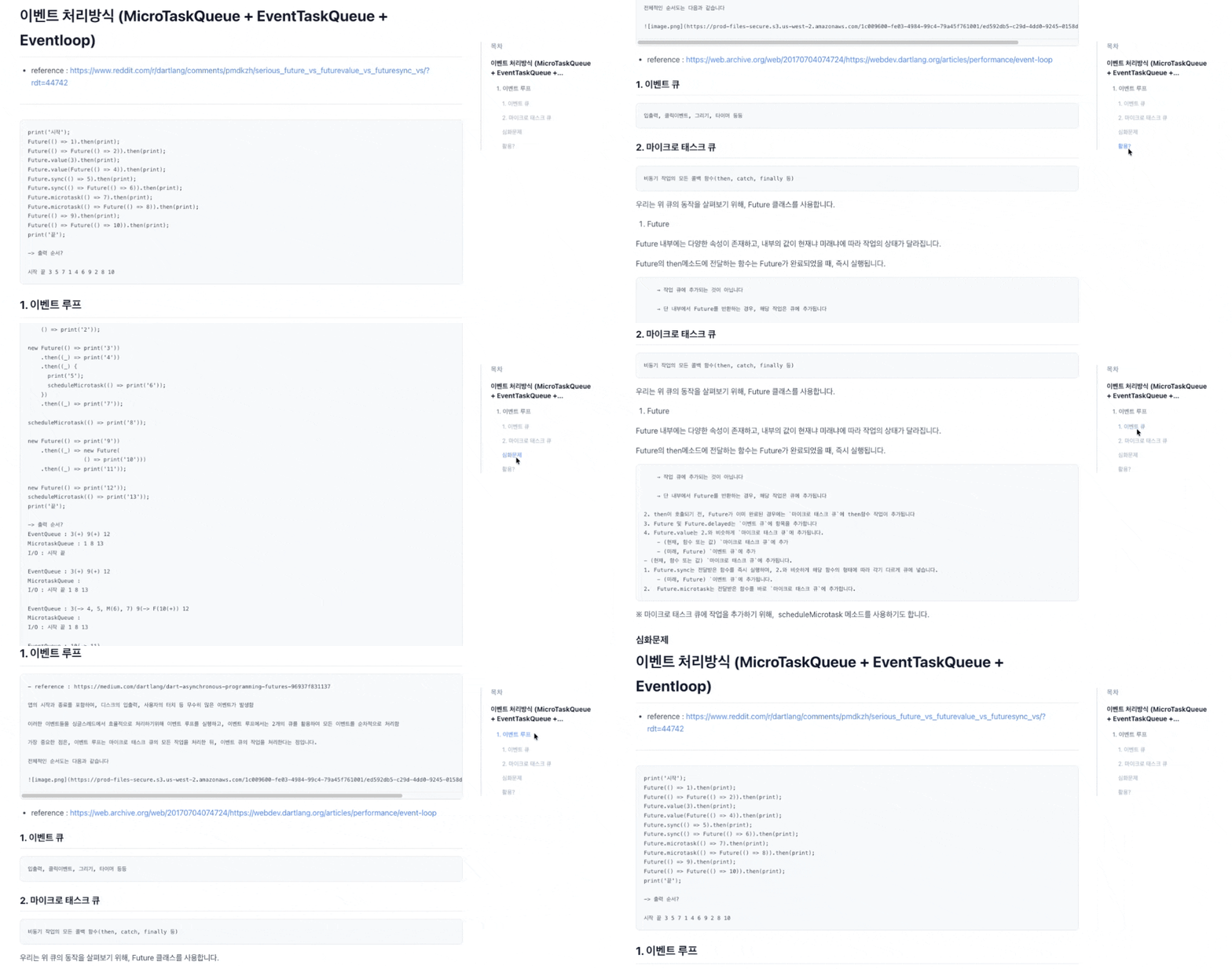
목차는 스크롤해도 계속 보이도록 sticky를 적용했다.
<divclassName="sticky top-20">
이렇게 하면 글을 읽는 동안 항상 목차가 화면에 유지된다.
풀코드
'use client'

import { useMemo } from 'react'

type TableOfContentsProps = {
  content: string
}

export default function TableOfContents({ content }: TableOfContentsProps) {
  // 마크다운 content에서 헤더(#, ##, ###)를 추출하여 목차 데이터 생성
  const indexItems = useMemo(() => {
    // 마크다운 내용을 줄 단위로 분리
    const lines = content.split('\n')

    return (
      lines
        // '#'으로 시작하는 라인만 필터링 (마크다운 헤더)
        .filter((line) => line.startsWith('#'))
        .map((line, index) => {
          // "# 제목", "## 제목" 형태를 파싱
          const match = line.match(/^(#+)\s+(.*)/)
          if (!match) return null

          // # 개수로 헤더 레벨 결정 (h1, h2, h3 ...)
          const level = match[1].length
          const text = match[2]

          // h4 이상은 목차에서 제외
          if (level > 3) return null

          // 스크롤 이동을 위한 id 생성
          // 특수문자 제거 후 공백을 - 로 치환
          const id = text
            .toLowerCase()
            .replace(/[^\w\sㄱ-힣]/g, '')
            .replace(/\s+/g, '-')

          return { id, level, text }
        })
        // null 제거
        .filter(Boolean) as { id: string; level: number; text: string }[]
    )
  }, [content])

  // 목차 클릭 시 해당 헤더 위치로 부드럽게 스크롤 이동
  const scrollToHeading = (id: string) => {
    const element = document.getElementById(id)

    if (element) {
      const offset = 80 // 상단 고정 헤더 높이 고려
      const bodyRect = document.body.getBoundingClientRect().top
      const elementRect = element.getBoundingClientRect().top

      // 현재 문서 기준 위치 계산
      const elementPosition = elementRect - bodyRect
      const offsetPosition = elementPosition - offset

      // smooth scroll 적용
      window.scrollTo({
        top: offsetPosition,
        behavior: 'smooth',
      })
    }
  }

  return (
    // 스크롤 시에도 목차가 보이도록 sticky 적용
    <div className="sticky top-20 h-fit space-y-4 border-l-2 border-slate-200 pl-5">
      <div className="flex items-center gap-2">
        <p className="text-sm font-bold tracking-wider text-slate-400 uppercase">
          목차
        </p>
      </div>

      <nav className="flex flex-col gap-3.5">
        {indexItems.length > 0 ? (
          indexItems.map((item, idx) => (
            <button
              key={`${item.id}-${idx}`}
              onClick={() => scrollToHeading(item.id)}
              // 헤더 레벨에 따라 들여쓰기 스타일 적용
              className={`group flex items-center text-left transition-all ${
                item.level === 1
                  ? 'text-sm font-bold text-slate-900'
                  : item.level === 2
                    ? 'pl-3 text-[13px] text-slate-600'
                    : 'pl-6 text-xs text-slate-400'
              }`}
            >
              <span className="line-clamp-2 transition-colors group-hover:text-blue-500">
                {item.text}
              </span>
            </button>
          ))
        ) : (
          <p className="text-xs text-slate-400">목차가 없습니다.</p>
        )}
      </nav>
    </div>
  )
}'✨FRONTEND > 📍React' 카테고리의 다른 글
| dnd-kit로 칸반보드 구현하기 (@dnd-kit/react) (0) | 2026.03.24 |
|---|---|
| Tailwind Breakpoint 기준으로 useResponsive 훅 만들기 (0) | 2026.02.26 |
| 패키지 관리자 비교 (0) | 2026.02.13 |
| shadcn/ui: 도입부터 커스텀까지 (0) | 2026.02.06 |
| React에서 map 쓰는 패턴 정리 (0) | 2025.12.02 |


